Managing Test Environments and Deployments
This section guides you through:
- Creating a new test environment
- Understanding deployment options:
- Single deployments
- Versioned services
- Multi-region locations
- App Service plan variations
- Deploying and testing the Bank Holiday service
- Managing configuration via vault and environment files
Step 1: Create a Test Environment
There are two types of deployable environments in Variant:
- Test: UAT, SIT, etc.
- Production: Prod, Pre-prod, etc.
Click the Environments menu and then Create new environment:
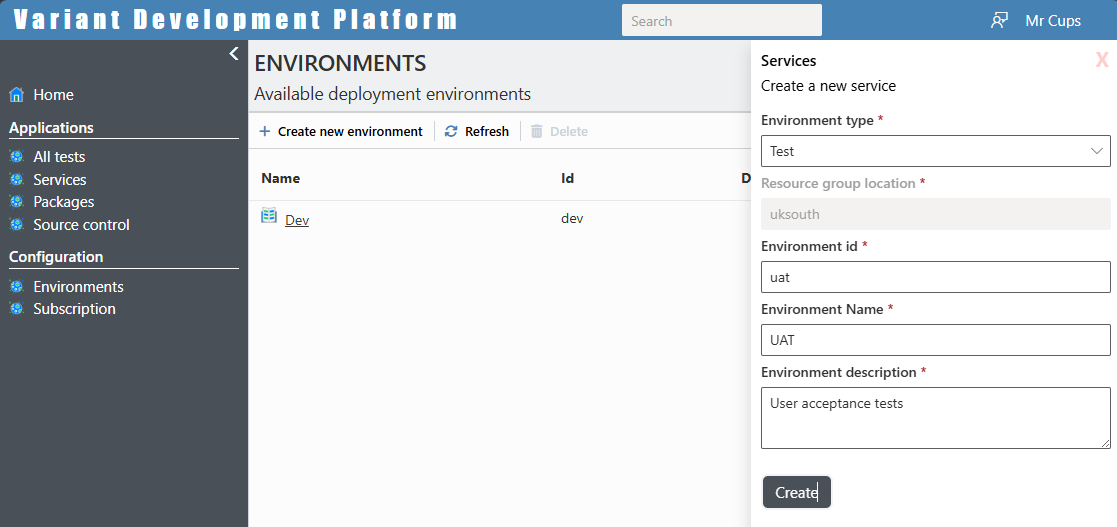
This triggers the DevOps.CreateUserEnv operation. It provisions a full Azure resource group structure including:
- App Insights
- Storage Account
- Key Vault
- Managed Identity
Provisioning takes around 2 minutes depending on Azure load.
You can choose:
- Consumption Plan: Free, pay-per-use, not always on
- Workflow Plan: Premium, always on
- Create your own: You can define new templates tailored to performance, region, and cost needs.
Step 2: Review the Environment
Once created, the environment dashboard shows:
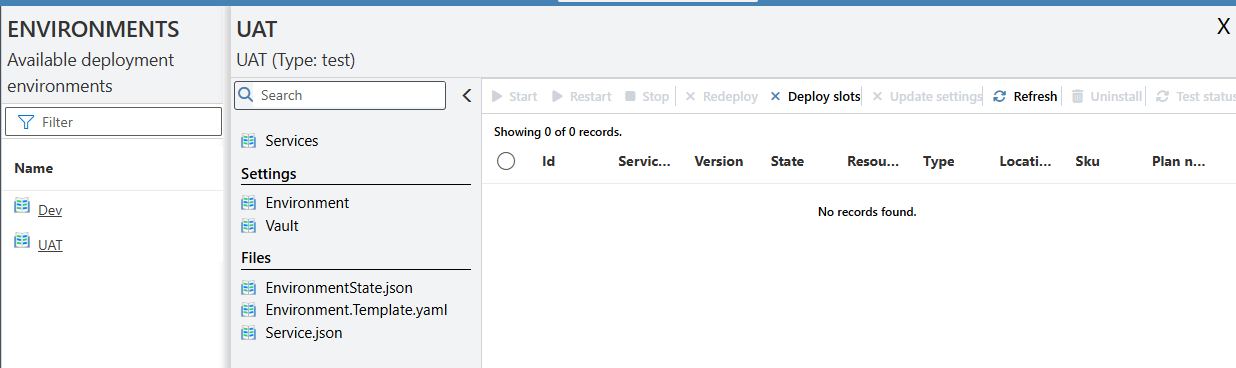
Each environment includes:
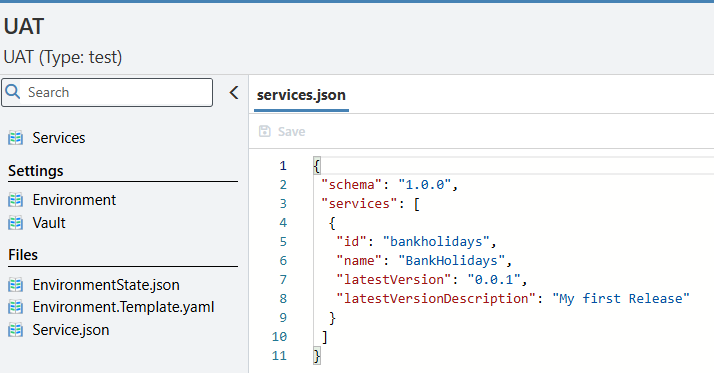
- A
services.jsonfile. This contains all the services available for release
- An
environments.yamlfile:
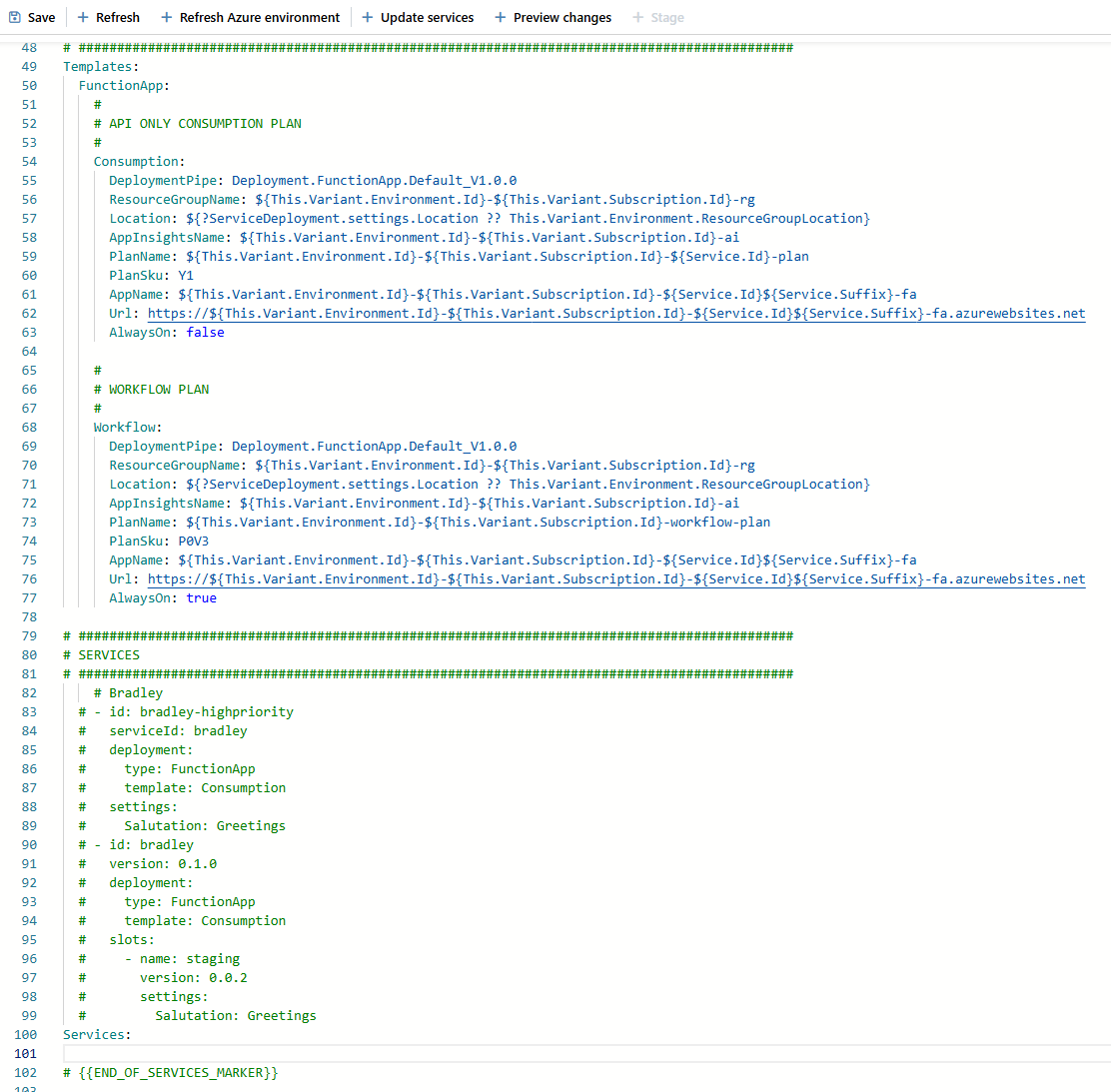
These control how services are deployed and configured.
Services are hosted on App Services, either:
- Azure Function Apps (default)>
- Container Apps (optional)>
Step 3: Deploying a Single Service
To deploy your first service, update your environments.json with:
Services:
  - id: bankholidays
    deployment:
      type: FunctionApp
      template: Consumption

# {{END_OF_SERVICES_MARKER}}
Click Preview Changes and you'll see a dialog:

If your service contains secrets or secure keys, Variant will warn you. These can be moved into the Key Vault using Variant’s vault system.
Add a Secret to the Vault
Go to the Vault menu and click Add:
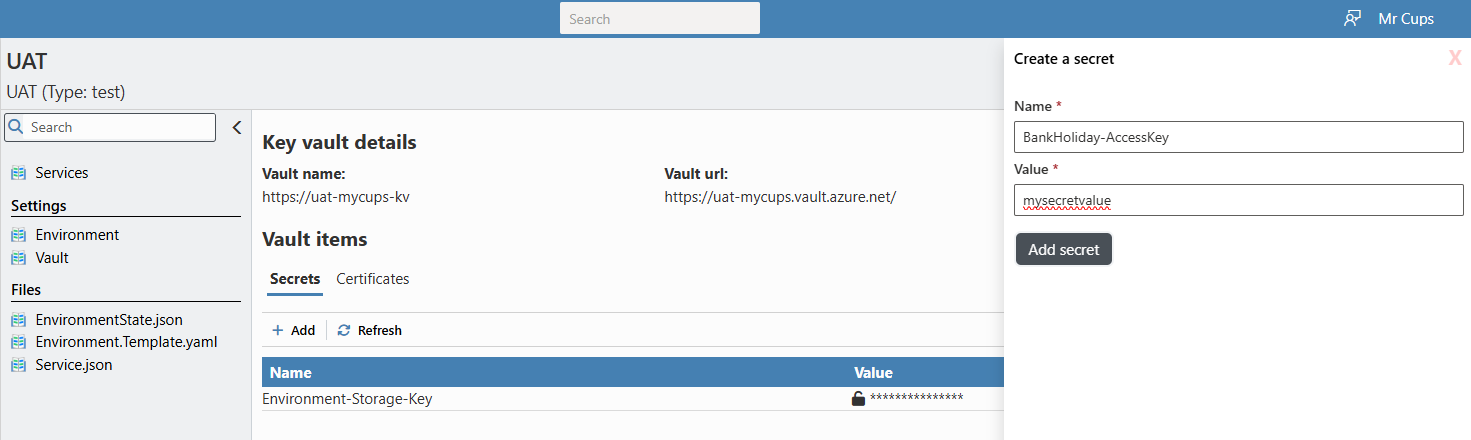
Once added, reference the secret in your service configuration:
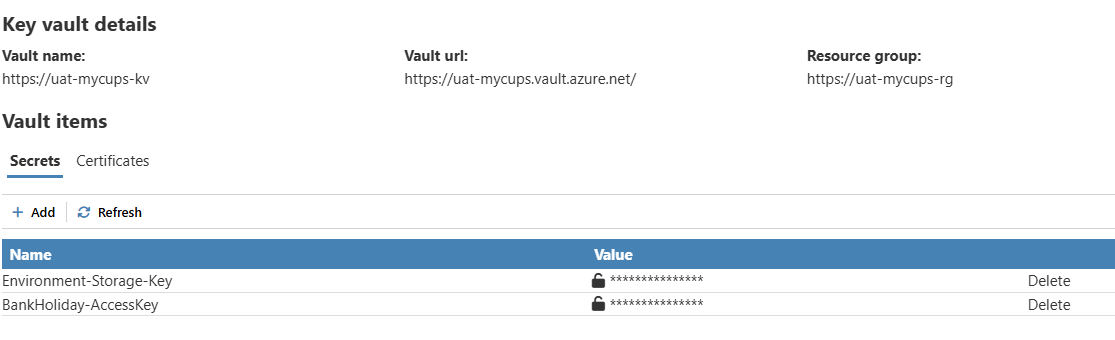
Add Secret to Service Deployment
Update your services.json entry:
  - id: bankholidays
    deployment:
      type: FunctionApp
      template: Consumption
    settings:
      BankHolidays:
        AccessKey: >-
          @Microsoft.KeyVault(VaultName=${This.Variant.Environment.Id}-${This.Variant.Subscription.Id}-kv;SecretName=BankHoliday-AccessKey)
Preview again:

Click Update Services to deploy:


Use your App Service URL + Authorization header to test:
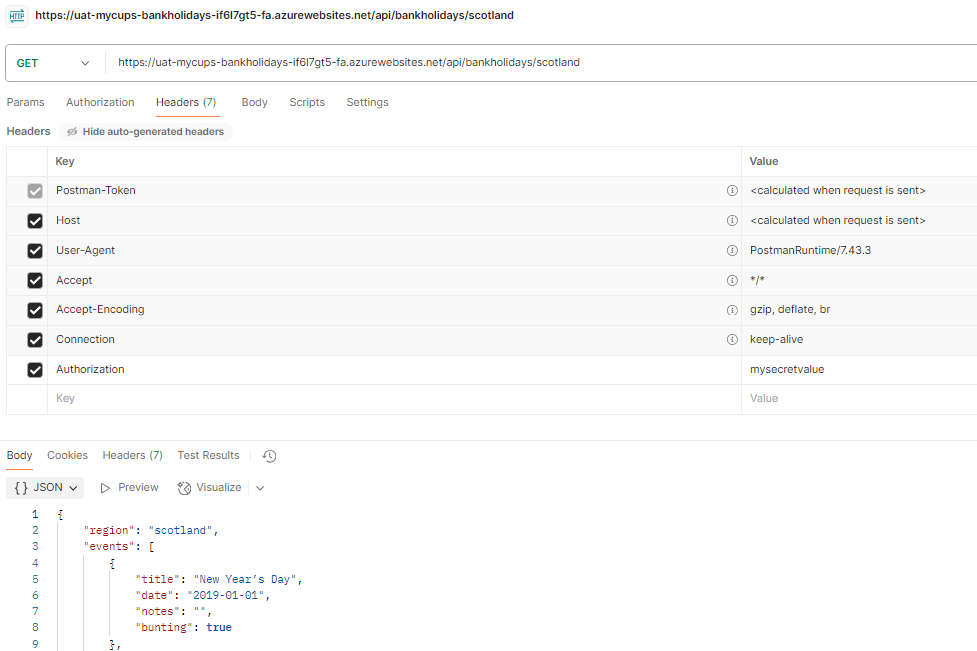
Step 4: Deploying to Multiple Locations or Versions
Variant supports multiple deployments of the same service:
Option 1: Multi-Location via Consumption Plan
The Consumption template supports:
- Deploying individual services per location
- One App Service Plan per deployment
Services:
  - id: bankholidays
    deployment:
      type: FunctionApp
      template: Consumption

  - id: bankholidays-ukwest
    serviceId: bankholidays
    version: 0.0.1
    deployment:
      type: FunctionApp
      template: Consumption
    settings:
      Location: ukwest
Option 2: Workflow Plan (Always-On)
This is a premium App Service Plan shared by all services (the Sku property determines the size and cost of this template):
Workflow:
  DeploymentPipe: Deployment.FunctionApp.Default_V1.0.0
  ResourceGroupName: ${This.Variant.Environment.Id}-${This.Variant.Subscription.Id}-rg
  Location: ${?ServiceDeployment.settings.Location ?? This.Variant.Environment.ResourceGroupLocation}
  AppInsightsName: ${This.Variant.Environment.Id}-${This.Variant.Subscription.Id}-ai
  PlanName: ${This.Variant.Environment.Id}-${This.Variant.Subscription.Id}-workflow-plan
  PlanSku: P0V3
  AppName: ${This.Variant.Environment.Id}-${This.Variant.Subscription.Id}-${Service.Id}${Service.Suffix}-fa
  Url: https://${This.Variant.Environment.Id}-${This.Variant.Subscription.Id}-${Service.Id}${Service.Suffix}-fa.azurewebsites.net
  AlwaysOn: true
Choosing the template determines which App Service Plan will be used.
Option 3: Create Your Own Templates
You can create reusable deployment templates with custom configurations. For example:
Workflow-WestEurope:
  DeploymentPipe: Deployment.FunctionApp.Default_V1.0.0
  ResourceGroupName: ${This.Variant.Environment.Id}-${This.Variant.Subscription.Id}-rg
  Location: westeurope
  AppInsightsName: ${This.Variant.Environment.Id}-${This.Variant.Subscription.Id}-ai
  PlanName: ${This.Variant.Environment.Id}-${This.Variant.Subscription.Id}-workflow-westeurope-plan
  PlanSku: B1
  AppName: ${This.Variant.Environment.Id}-${This.Variant.Subscription.Id}-${Service.Id}${Service.Suffix}-fa
  Url: https://${This.Variant.Environment.Id}-${This.Variant.Subscription.Id}-${Service.Id}${Service.Suffix}-fa.azurewebsites.net
  AlwaysOn: true
Changes made to the above are :
- Location
- Plan name
- Plan size: B1 resource type (Azure recommended for dev and test envs.)
Deploying with a custom template:
Services:
  ...
  - id: bankholidays-westeurope
    serviceId: bankholidays
    deployment:
      type: FunctionApp
      template: Workflow-WestEurope
Step 5: Reviewing the Deployed Services
Your final services.json should look like:
Services:
  - id: bankholidays
    deployment:
      type: FunctionApp
      template: Consumption

  - id: bankholidays-ukwest
    serviceId: bankholidays
    deployment:
      type: FunctionApp
      template: Consumption
    settings:
      Location: ukwest

  - id: bankholidays-westeurope
    serviceId: bankholidays
    deployment:
      type: FunctionApp
      template: Workflow-WestEurope

# {{END_OF_SERVICES_MARKER}}
You should now see your deployed services:
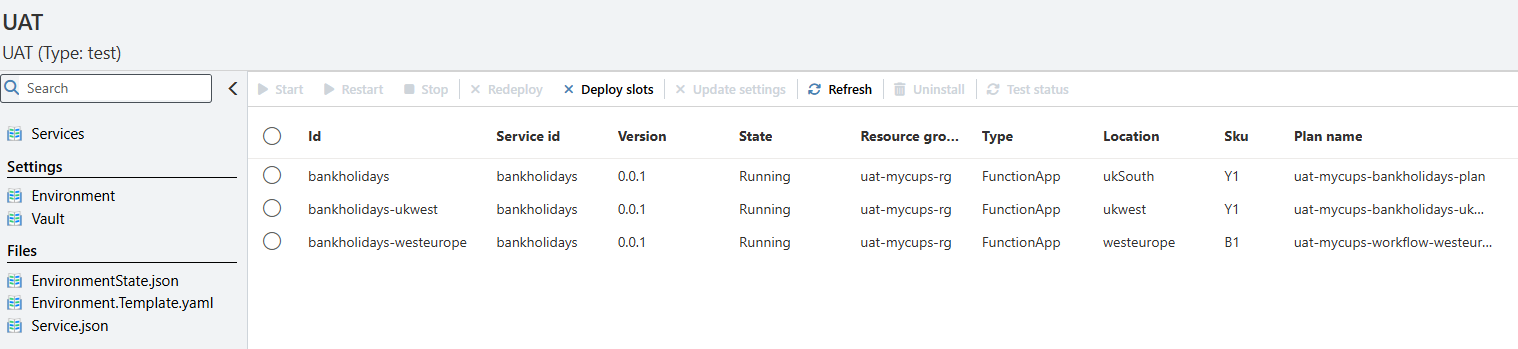
You've now successfully deployed a single service across multiple Azure regions and templates.